
 |
In my current role as a Project Accountant, there are four tools that I use almost every day:
- Intuit QuickBooks Online
- Google Sheets
- Bank Mandiri Internet Banking
- Google Drive
These tools help me manage financial transactions, organize supporting documents, and maintain accounting records efficiently.
Among them, Intuit QuickBooks Online is the main accounting software I use to record financial transactions and prepare accounting reports.
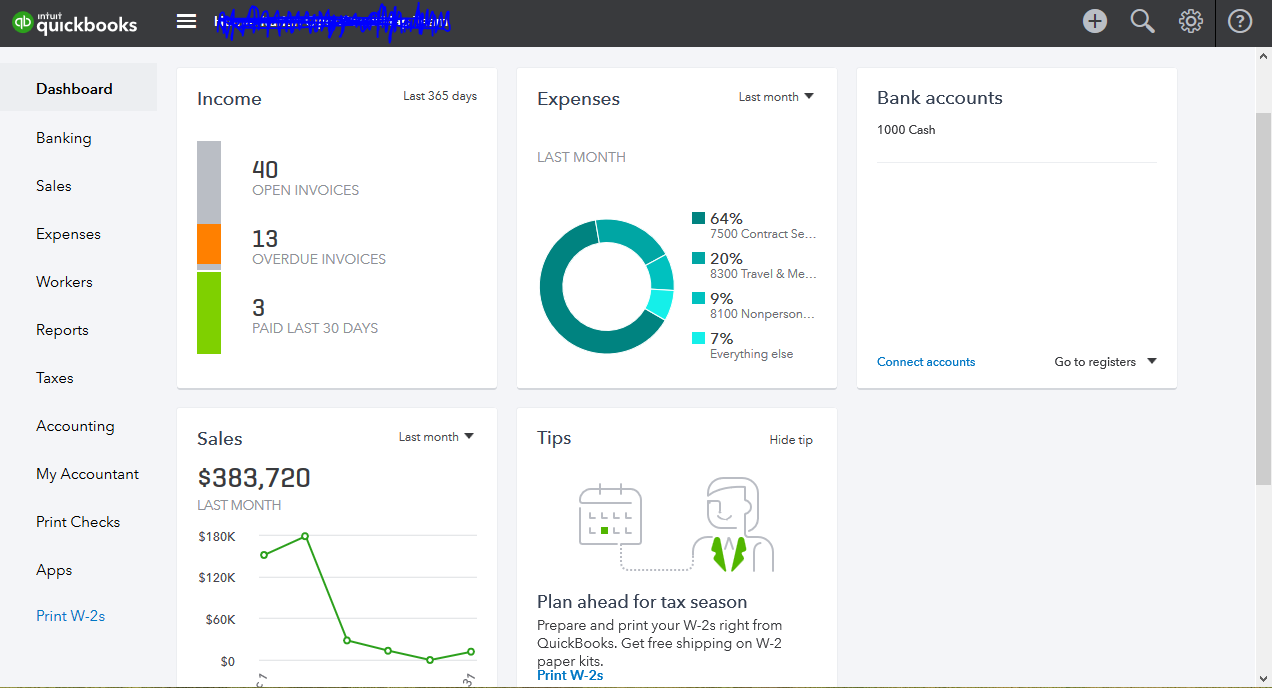
Whenever I need to enter a new transaction, I first sign in to QuickBooks Online. After logging in, the dashboard appears as shown in Figure 1 above.
From this dashboard, I can access various features, including expense recording, invoicing, banking transactions, financial reports, and other accounting functions that support daily project operations.
In this article, I will share a simple step-by-step guide on how to record expenses in Intuit QuickBooks Online based on my daily experience using the software.
 |
Understanding Common Transactions
In an international non-profit organization, financial transactions generally fall into two main categories:
- Cash Inflow (money received)
- Cash Outflow (money paid out)
Cash inflow transactions may include grants, donations, or funding received from donors.
Cash outflow transactions are usually more frequent and may include:
- Employee salary payments
- Vendor payments
- Project expenses
- Staff reimbursements
- Operational expenses
Among these, reimbursements and salary payments are some of the most common cash outflow transactions. Once recorded, these transactions are typically recognized as expenses in the accounting records.
How to Record an Expense
To record an expense in Intuit QuickBooks Online, click the "+" (Create New) button located in the upper-right corner of the screen.
A menu will appear, as shown in Figure 2 above.
Under the Vendors section, select Expense.
This will open the Expense Entry form where you can enter details such as:
- Vendor name
- Payment account
- Payment date
- Payment method
- Expense category
- Amount
- Supporting notes or descriptions
After completing the required information, review the details carefully and save the transaction.
Recording expenses accurately helps ensure that project expenditures are properly tracked, financial reports remain reliable, and donor funds are managed transparently.
In the following sections, I will explain each field of the Expense form and how I usually complete it in my daily work.
 |
To record an expense in Intuit QuickBooks Online, click the "+" (Create New) button located in the upper-right corner of the screen.
A menu will appear, as shown in Figure 2 above.
Under the Vendors section, select Expense.
The Expense Entry form will then open.
 Information to Complete
There are several fields that need to be completed before saving the transaction.
Vendor / Payee
In the top-left field, enter the name of the vendor, supplier, or person responsible for the transaction.
Bank Account
In the next field, select the project bank account that has already been registered in QuickBooks.
Once the account is selected, the current bank balance will be displayed automatically, making it easier to monitor available project funds.
Payment Date and Location
Enter the payment date according to the transaction date.
Also select the project location where the expense occurred.
Account Details
In the Account Details section, complete the following information:
- Select the appropriate account code in the Account column.
- Write a brief explanation of the transaction in the Description column.
- Enter the amount paid in the Amount column using the applicable currency.
- Select the donor name in the Donor field.
- Select the project code in the Class field.
After all required information has been entered, review the transaction carefully.
Then click Save or Save and New.
The transaction will automatically be recorded as an expense in QuickBooks Online.
My Personal Workflow
Because I work in the Jakarta office, which serves as a sub-location of the project, I usually prefer to enter expenses into QuickBooks closer to the end of the month.
The reason is quite practical.
Project transactions are sometimes entered directly by the headquarters office into QuickBooks without first transferring funds to the sub-location account.
As a result, project expenses can continue to change throughout the month. New transactions may be added, while some entries may be adjusted or corrected.
Waiting until closer to month-end helps me ensure that the records are more complete and accurate before finalizing the expense entries.
Using Google Sheets for Daily Tracking
Before entering transactions into QuickBooks, I first record daily transactions in a Google Sheets file provided by the Finance Department.
This spreadsheet serves as a working document for monitoring project expenses throughout the month.
It is also used to record:
- Daily project expenses incurred at the local office
- Transactions entered directly by headquarters
- Expense adjustments and corrections
- Monthly project activity costs
One of the main purposes of this spreadsheet is to track the total project expenses in real time.
At the end of each month, I compare the total expenses recorded in Google Sheets with the total expenses recorded in QuickBooks Online.
The two totals should match.
This reconciliation process helps ensure that all project expenses have been properly recorded and that the financial information remains accurate and reliable.
Final Thoughts
Accurate expense recording is an important part of project accounting.
By combining QuickBooks Online for official accounting records and Google Sheets for daily monitoring, it becomes easier to track project spending, reconcile transactions, and maintain transparency in financial reporting.
Although the process may seem detailed at first, having a clear workflow helps keep financial records organized and makes month-end reporting much smoother.

4 comments:
KABAR BAIK!!!
Nama saya Lady Mia, saya ingin menggunakan media ini untuk mengingatkan semua pencari pinjaman agar sangat berhati-hati, karena ada penipuan di mana-mana, mereka akan mengirim dokumen perjanjian palsu kepada Anda dan mereka akan mengatakan tidak ada pembayaran di muka, tetapi mereka adalah penipu , karena mereka kemudian akan meminta pembayaran biaya lisensi dan biaya transfer, jadi berhati-hatilah terhadap Perusahaan Pinjaman yang curang itu.
Perusahaan pinjaman yang nyata dan sah, tidak akan menuntut pembayaran konstan dan mereka tidak akan menunda pemrosesan transfer pinjaman, jadi harap bijak.
Beberapa bulan yang lalu saya tegang secara finansial dan putus asa, saya telah ditipu oleh beberapa pemberi pinjaman online, saya hampir kehilangan harapan sampai Tuhan menggunakan teman saya yang merujuk saya ke pemberi pinjaman yang sangat andal bernama Ms. Cynthia, yang meminjamkan saya pinjaman tanpa jaminan sebesar Rp800,000,000 (800 juta) dalam waktu kurang dari 24 jam tanpa konstan pembayaran atau tekanan dan tingkat bunga hanya 2%.
Saya sangat terkejut ketika saya memeriksa saldo rekening bank saya dan menemukan bahwa jumlah yang saya terapkan dikirim langsung ke rekening bank saya tanpa penundaan.
Karena saya berjanji bahwa saya akan membagikan kabar baik jika dia membantu saya dengan pinjaman, sehingga orang bisa mendapatkan pinjaman dengan mudah tanpa stres atau penipuan
Jadi, jika Anda memerlukan pinjaman apa pun, silakan hubungi dia melalui email nyata: cynthiajohnsonloancompany@gmail.com dan atas karunia Allah, ia tidak akan pernah mengecewakan Anda dalam mendapatkan pinjaman jika Anda mematuhi perintahnya.
Anda juga dapat menghubungi saya di email saya: ladymia383@gmail.com dan Sety yang memperkenalkan dan memberi tahu saya tentang Ibu Cynthia, ini emailnya: arissetymin@gmail.com
Yang akan saya lakukan adalah mencoba untuk memenuhi pembayaran cicilan pinjaman saya yang akan saya kirim langsung ke rekening perusahaan setiap bulan.
Sepatah kata cukup untuk orang bijak.
I read your blog carefully and go through your blog this is very knowledgeable blog and this will help us a lot. So please share these types of blog with us.
If you are facing any problem regarding Quicken then you most go with the Quicken® Phone Number for Support
We have read your blog. It was really informative and we have collected much knowledge that has assisted me a lot. People can also visit our website.....Visit Quicken Bill Pay Support ! Get Instant Help and Support from Quicken Certified Experts.You Do Not Want To Get Hold Of The Quicken Support Online Or Be Looking For Opening Hours For Quicken Support Team.
This is Really Fantastic And Thanks For Sharing The Valuable Post..Issues With Quicken Software Dial Visit Quicken Support Phone Number +1(888)586-5828 Toll-free !Get Instant Help and Support from Quicken Certified Experts.You Do Not Want To Get Hold Of The Quicken Support Online Or Be Looking.
Post a Comment