

The good news is that a reconciliation can still be revised in Intuit QuickBooks Online.
Step 1: Open the Project Register
Log in to Intuit QuickBooks Online using your User ID and Password until the dashboard appears, as shown in Figure (1).
 |
| Figure (1) |
Next:
- Click the Accounting menu on the left side.
- The Chart of Accounts screen will appear, similar to Figure (2).
- Locate the project account that needs to be revised.
- Click View Register for the project account.
The screen will then appear similar to Figure (3)
 |
| Figure (2) |
 |
| Figure (3) |
 |
| Figure (4) |

Step 2: Remove the Reconciliation Status
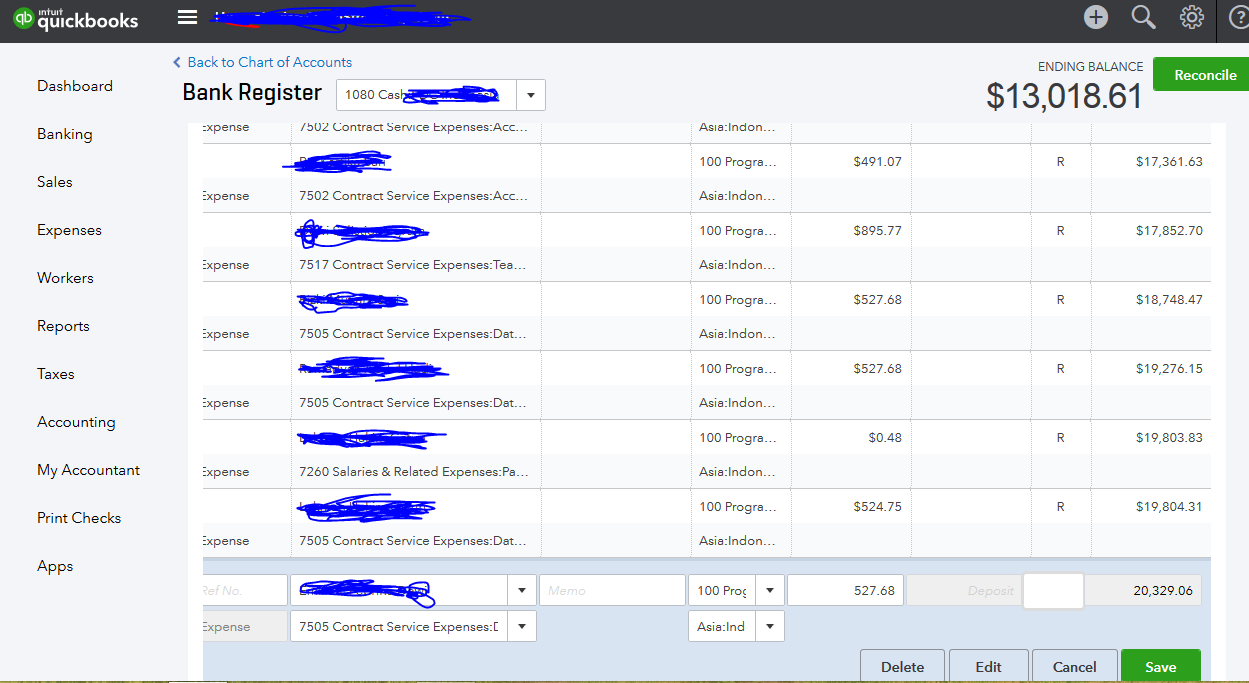
On the register screen, you will see transactions marked with the letter "R", which indicates that they have been reconciled.
To revise a specific month, for example January 2018:
- Click each transaction marked with "R" within that month.
- Remove the "R" status.
- Click Save after each change.
An example is shown in Figure (4).
A small suggestion from my own experience: avoid removing the reconciliation status too quickly. Taking your time helps prevent accidental changes to the wrong transactions.
Personally, I prefer starting from the earliest transaction in the month and then moving upward through the list until all reconciled transactions for the selected month have been reviewed.
Remember:
- Only remove the "R" status.
- Do not edit other transaction details unless necessary.
- Click Save after each change.
Once finished, double-check to make sure that all transactions marked "R" for January 2018 have been removed.
Step 3: Perform the Reconciliation Again
After all reconciliation marks for the selected month have been cleared, you can perform the reconciliation again.
Simply click the Reconcile button, as shown in Figure (4).
The reconciliation process is the same as described in the previous article.
 |
| Figure (5) |
Step 4: Determine the Correct Ending Balance
If transactions from later months have already been entered into QuickBooks, the current account balance will have changed.
Because of this, you need to identify the correct Ending Balance for the month being reconciled.
For example:
- If you are re-reconciling January 2018, use the account balance as of 31 January 2018.
- This balance can usually be identified directly from the register screen, as illustrated in Figure (5).
Once the correct Ending Balance and Ending Date are entered, you can proceed with the reconciliation process and complete it as usual.
A Small Reflection
One lesson I have learned from project accounting is that reconciliation is not only about matching numbers.
It is also about maintaining the accuracy and reliability of financial information.
Occasionally, a completed reconciliation needs to be revised. That does not necessarily mean something went wrong. Sometimes it simply reflects a careful review process and a commitment to keeping records accurate.
Taking a few extra minutes to verify transactions today can save many hours of investigation later.
Happy accounting, and I hope this information is helpful for your project finance journey.

No comments:
Post a Comment