Showing posts with label Service Quality. Show all posts

Project Accounting Series: How to Revise a Reconciliation in QuickBooks Online

Sometimes a bank reconciliation has already been completed, but later we discover that a correction is needed. This can happen for several reasons, such as finding a missing transaction, correcting an entry, or updating information after a review.

The good news is that a reconciliation can still be revised in Intuit QuickBooks Online.

Step 1: Open the Project Register

Log in to Intuit QuickBooks Online using your User ID and Password until the dashboard appears, as shown in Figure (1).


Figure  (1)

Next:

  • Click the Accounting menu on the left side.
  • The Chart of Accounts screen will appear, similar to Figure (2).
  • Locate the project account that needs to be revised.
  • Click View Register for the project account.

The screen will then appear similar to Figure (3)


Figure (2)


Figure (3)


Figure (4)


Step 2: Remove the Reconciliation Status

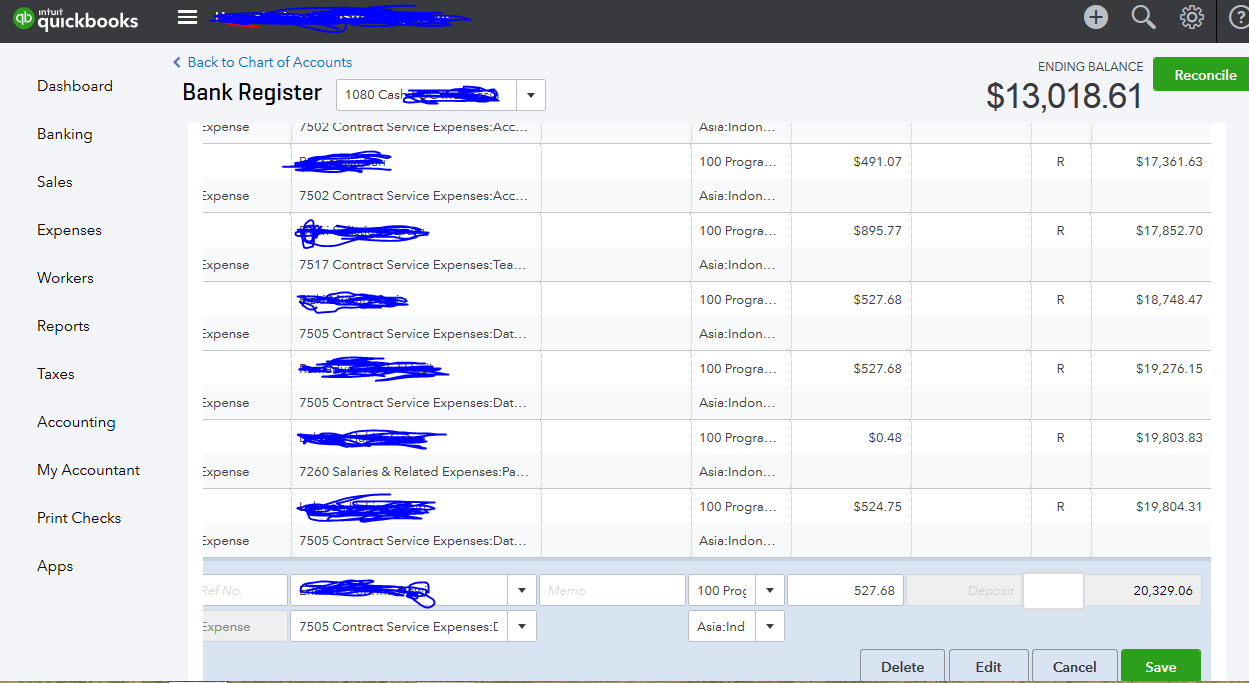
On the register screen, you will see transactions marked with the letter "R", which indicates that they have been reconciled.

To revise a specific month, for example January 2018:

  • Click each transaction marked with "R" within that month.
  • Remove the "R" status.
  • Click Save after each change.

An example is shown in Figure (4).

A small suggestion from my own experience: avoid removing the reconciliation status too quickly. Taking your time helps prevent accidental changes to the wrong transactions.

Personally, I prefer starting from the earliest transaction in the month and then moving upward through the list until all reconciled transactions for the selected month have been reviewed.

Remember:

  • Only remove the "R" status.
  • Do not edit other transaction details unless necessary.
  • Click Save after each change.

Once finished, double-check to make sure that all transactions marked "R" for January 2018 have been removed. 

Step 3: Perform the Reconciliation Again

After all reconciliation marks for the selected month have been cleared, you can perform the reconciliation again.

Simply click the Reconcile button, as shown in Figure (4).

The reconciliation process is the same as described in the previous article.


Figure (5)

Step 4: Determine the Correct Ending Balance

If transactions from later months have already been entered into QuickBooks, the current account balance will have changed.

Because of this, you need to identify the correct Ending Balance for the month being reconciled.

For example:

  • If you are re-reconciling January 2018, use the account balance as of 31 January 2018.
  • This balance can usually be identified directly from the register screen, as illustrated in Figure (5).

Once the correct Ending Balance and Ending Date are entered, you can proceed with the reconciliation process and complete it as usual.

A Small Reflection

One lesson I have learned from project accounting is that reconciliation is not only about matching numbers.

It is also about maintaining the accuracy and reliability of financial information.

Occasionally, a completed reconciliation needs to be revised. That does not necessarily mean something went wrong. Sometimes it simply reflects a careful review process and a commitment to keeping records accurate.

Taking a few extra minutes to verify transactions today can save many hours of investigation later.

Happy accounting, and I hope this information is helpful for your project finance journey.

Project Accounting Series: Bank Reconciliation in QuickBooks Online

Bank reconciliation is the process of comparing and matching financial records from different sources to ensure that all transactions have been recorded accurately.

In my work, reconciliation means comparing cash transactions recorded in three places:

  • Bank Mandiri statements
  • Google Sheets
  • QuickBooks Online

Only transactions that directly involve money moving into or out of the bank account are included in the reconciliation process.

The main objective is to make sure that the cash balance recorded in Google Sheets and QuickBooks matches the balance shown in the bank statement.

Transactions that do not involve cash movement through the project's bank account do not need to be reconciled. For example, some project expenses may be entered directly into QuickBooks by the Headquarters office without any funds being transferred through the local project bank account.

Preparing for Reconciliation

Before starting the reconciliation process, it is helpful to prepare:

  • The bank statement for the current month
  • The Google Sheets expense tracker for the same period

One important function of the spreadsheet is to record all cash payments made from the bank account. Therefore, make sure that every outgoing transaction shown in the bank statement has also been recorded in the spreadsheet, including:

  • bank charges,
  • administrative fees,
  • taxes,
  • and other deductions.

A Note About Advances

In project accounting, advances often require special attention.

An advance may be paid during the current month, but if it has not yet been accounted for and supported by receipts or supporting documents, it has not yet become an actual expense.

Although the money has already left the bank account, I usually do not include the advance in the reconciliation of project expenses until it has been properly settled and documented.

From a practical perspective, this approach makes it easier to identify the actual expenses that occurred during the reporting period.


Figure (1)

Starting the Reconciliation Process

To begin the reconciliation process in QuickBooks Online:

  1. Click the Accounting menu on the left side of the screen.
  2. The screen will appear as shown in Figure 1.
  3. Find the project account that you want to reconcile.
  4. Click View Register for the appropriate account.
Figure (2)

In my example, I selected the account shown under code 1080, and the screen appeared as shown in Figure 2.

Next:

  1. Click Reconcile.
  2. The screen will appear as shown in Figure 3.
Figure  (3)


Entering Reconciliation Information

On the reconciliation screen, complete the following fields:

Ending Balance

Enter the ending balance shown in QuickBooks.

For example:

$21,837.13

This balance is displayed in US Dollars because the project account is maintained in that currency.

Ending Date

Enter the last day of the reporting period.

For example:

31 January 2018

After entering both fields, click Start Reconciling.


Figure  (4)

Matching Transactions

The next screen will appear as shown in Figure 4.

To ensure that all transactions are visible:

  • Click Reset Statement Ending Date if necessary.
  • Review all deposits (cash inflows).
  • Review all payments (cash outflows).

Place a check mark next to each transaction that matches the bank statement.

Continue until the value shown in the Difference field becomes:

0.00

When the difference reaches zero, the reconciliation is mathematically complete.

However, it is still important to perform one final review.

Verifying the Results

Even when the difference shows zero, I usually compare the totals with my Google Sheets records.

For example:

  • Total cash out (expenses): $15,930.69
  • Total cash in (deposits): $16,911.08

These amounts should match the totals recorded in the spreadsheet for the same period.

If:

  • the Difference value is zero, and
  • the cash inflow and cash outflow totals agree with the spreadsheet,

then the reconciliation can be considered successful.

Completing the Reconciliation


Figure (5)

After confirming that everything is correct:

  1. Click Finish Now.
  2. QuickBooks will save the reconciliation.
  3. The confirmation screen will appear as shown in Figure 5.

At this point, the reconciliation process has been completed successfully.


Final Thoughts

Regular bank reconciliation is one of the most important tasks in project accounting.

By comparing bank

statements, spreadsheets, and QuickBooks records, we can quickly identify missing transactions, recording errors, or inconsistencies before they become larger problems.

Although reconciliation requires patience and attention to detail, it helps ensure that project financial records remain accurate, reliable, and ready for reporting.

Thank you for reading, and I hope this article is helpful for anyone working with project accounting and QuickBooks Online.

Project Accounting Series: How to Convert Indonesian Rupiah to US Dollars Using the Mid Exchange Rate

In project accounting, I work with two currencies:
  • Indonesian Rupiah (IDR)
  • United States Dollar (USD)

Since the project uses a local bank account with Bank Mandiri and many transactions occur in Indonesian Rupiah, I need to convert those transactions into US Dollars before recording them in QuickBooks Online.

Fortunately, the process is quite simple.

Understanding Exchange Rates

An exchange rate is the value of one currency compared to another currency.

When converting Rupiah into US Dollars, I use the mid exchange rate provided by Bank Mandiri on the transaction date.

The mid exchange rate is calculated as the average of:

  • the buying rate (buy rate), and
  • the selling rate (sell rate).

Formula

Mid Exchange Rate = (Buy Rate + Sell Rate) ÷ 2

Figure  1

Finding the Exchange Rate

To obtain the exchange rate, I usually check the Bank Mandiri buy and sell rates from an exchange rate website, such as:

http://kursdollar.net

As shown in Figure (1), the exchange rates on 9 January 2018 were:

  • Buy Rate: Rp 13,270
  • Sell Rate: Rp 13,470

To calculate the mid exchange rate:

(Rp 13,270 + Rp 13,470) ÷ 2

= Rp 13,370

Therefore, the mid exchange rate for that day is:

Rp 13,370 per USD

Example Calculation

Suppose there is a project expense of:

Rp 5,000,000

To convert it into US Dollars:

Rp 5,000,000 ÷ Rp 13,370

= USD 373.97

Therefore:

Rp 5,000,000 = USD 373.97

Recording the Amount

The converted amount of USD 373.97 is the value that I use when recording the transaction in:

  • Google Sheets project reports
  • QuickBooks Online expense records

Using a consistent exchange rate helps ensure that financial reports remain accurate and comparable across different reporting systems.

A Practical Reminder

When working with multiple currencies, it is important to use the exchange rate from the actual transaction date whenever possible.

This helps maintain consistency between:

  • bank records,
  • spreadsheets,
  • project reports,
  • and accounting software.

Even a small difference in exchange rates can affect financial reporting when many transactions are involved.

Final Thoughts

Currency conversion is a small but important part of project accounting.

By using the mid exchange rate consistently, we can ensure that financial information is recorded fairly and accurately across different systems.

Thank you for reading, and I hope this simple explanation is helpful for anyone working with project accounting and multi-currency transactions.